How to use?

1. Use your keyboard shortcut
Open xcribe by using the keyboard shortcut you configured in the onboarding process.
2. Start talking
Once xcribe opens, it is automatically recording so you can just start talking.
You can use the keyboard numbers 1 to 5 to change between different modes. You can also click on the buttons :)
3A. Transcribe and paste
Once you have finished your recording, press space to stop recording and start automatically the transcription and pasting process.
You will see a loading indicator, and once the transcription is ready, xcribe will close and it will paste the transcription in the active application.
Automatic pasting is only available in the direct download version. Learn why.3B. Cancel the recording
If you want to cancel the recording and transcription process, press esc and xcribe will stop the recording and hide the window.
Notes
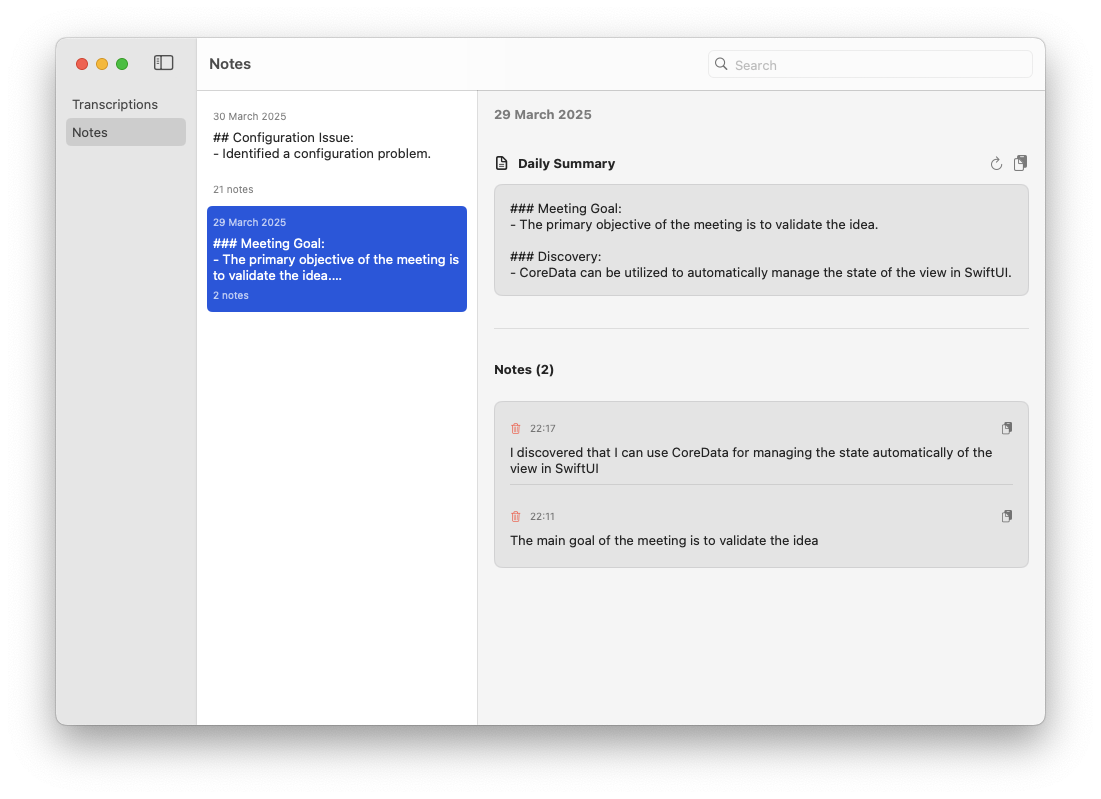
During the day, you can use xcribe to take notes. Just open xcribe, select the notes mode and start talking. When you are done, press space and xcribe will close and automatically transcribe the text and start preparing a summary for you. To access your notes and summary, open the Transcriptions window from the top bar.
The notes will be automatically grouped by day. No need for you to do it :)
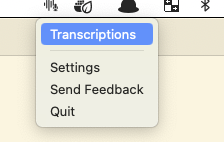
Transcriptions

Access all the transcriptions you have made with xcribe. You can search, filter and reuse them. Just open the Transcriptions window from the top bar and start searching.
Extended mode
Extended mode allows you to create custom modes that can format, translate, summarize, or transform your transcription using AI.
Press numbers from 1 to 5 while xcribe is open to change between different modes. You can also click on the buttons :)
By default, Extended mode uses Apple Intelligence for local, offline transformation. Optionally, you can connect to external AI providers for more advanced transformations. Learn more about the privacy policy.